> ## Documentation Index
> Fetch the complete documentation index at: https://docs.classform.net/llms.txt
> Use this file to discover all available pages before exploring further.
# 내 신청 조회
> 내 신청 상태를 확인하는 방법을 안내합니다.
## 신청자 로그인
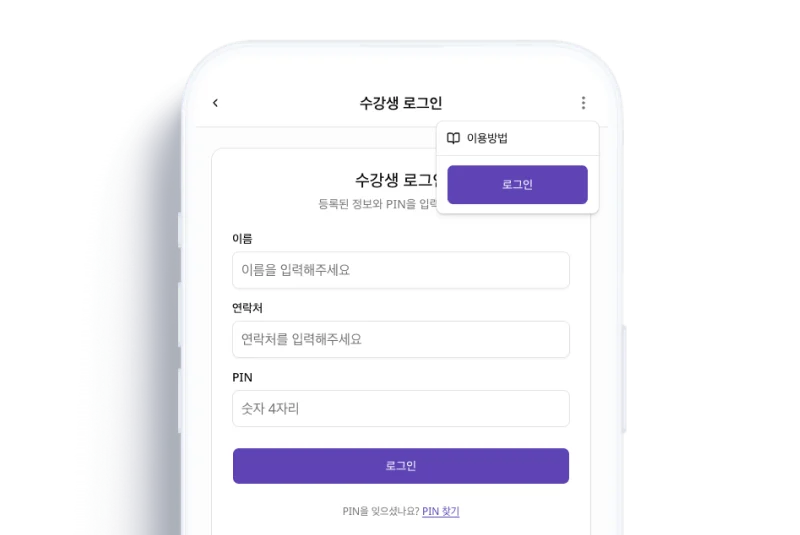 센터 상단의 \[로그인]을 클릭한 후, 이름과 연락처, PIN을 입력합니다.
#### PIN을 잊었을 때
PIN을 분실한 경우, 두 가지 방법으로 재설정할 수 있습니다.
| 방법 | 설명 |
| -------- | ------------------------------ |
| SMS 본인인증 | 마이페이지 로그인 화면에서 직접 재설정합니다. |
| 센터 문의 | 센터 관리자에게 문의하여 비밀번호 초기화를 요청합니다. |
***
## 마이페이지 접속
센터 상단의 \[로그인]을 클릭한 후, 이름과 연락처, PIN을 입력합니다.
#### PIN을 잊었을 때
PIN을 분실한 경우, 두 가지 방법으로 재설정할 수 있습니다.
| 방법 | 설명 |
| -------- | ------------------------------ |
| SMS 본인인증 | 마이페이지 로그인 화면에서 직접 재설정합니다. |
| 센터 문의 | 센터 관리자에게 문의하여 비밀번호 초기화를 요청합니다. |
***
## 마이페이지 접속
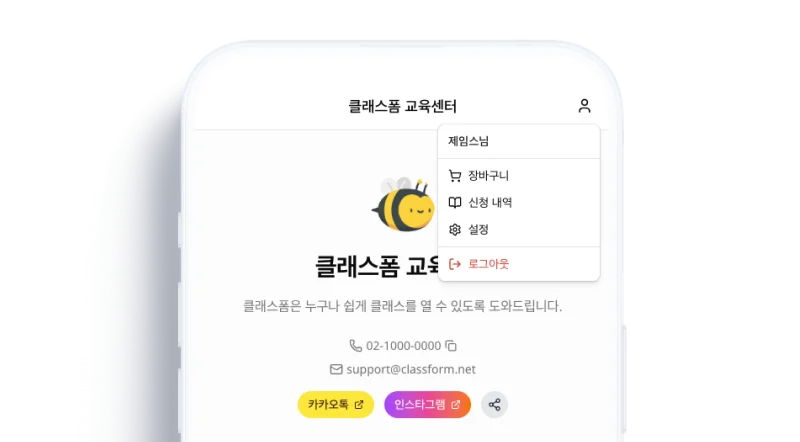 센터 페이지 상단의 **내 신청 조회**를 클릭한 후, 이름·연락처·비밀번호를 입력하면 마이페이지에 접속할 수 있습니다.
PIN은 최초 신청 시 설정한 간편 비밀번호(4자리)입니다.
***
## 신청 내역 확인
센터 페이지 상단의 **내 신청 조회**를 클릭한 후, 이름·연락처·비밀번호를 입력하면 마이페이지에 접속할 수 있습니다.
PIN은 최초 신청 시 설정한 간편 비밀번호(4자리)입니다.
***
## 신청 내역 확인
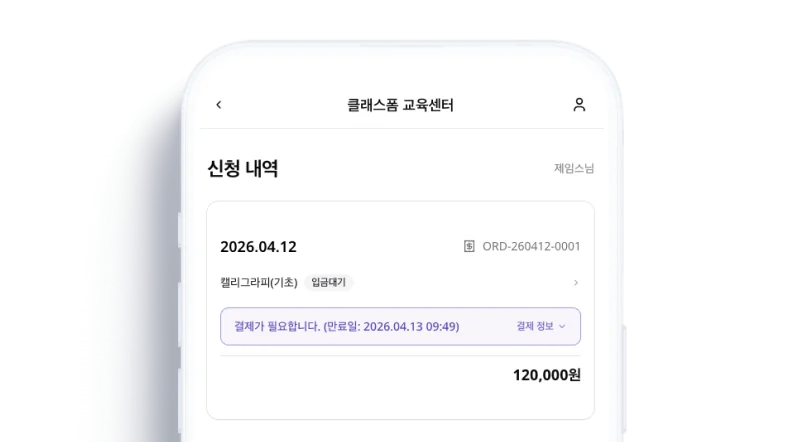 마이페이지에서 현재 신청한 클래스 목록과 각 건의 결제, 신청 상태를 확인할 수 있습니다.
* **입금 확인 요청** — 입금을 완료하였으면, 센터운영자에게 입금 확인을 요청할 수 있습니다.
* [**취소**, **환불 요청 →**](/cancel)
마이페이지에서 현재 신청한 클래스 목록과 각 건의 결제, 신청 상태를 확인할 수 있습니다.
* **입금 확인 요청** — 입금을 완료하였으면, 센터운영자에게 입금 확인을 요청할 수 있습니다.
* [**취소**, **환불 요청 →**](/cancel)